What is an Organization Palette?
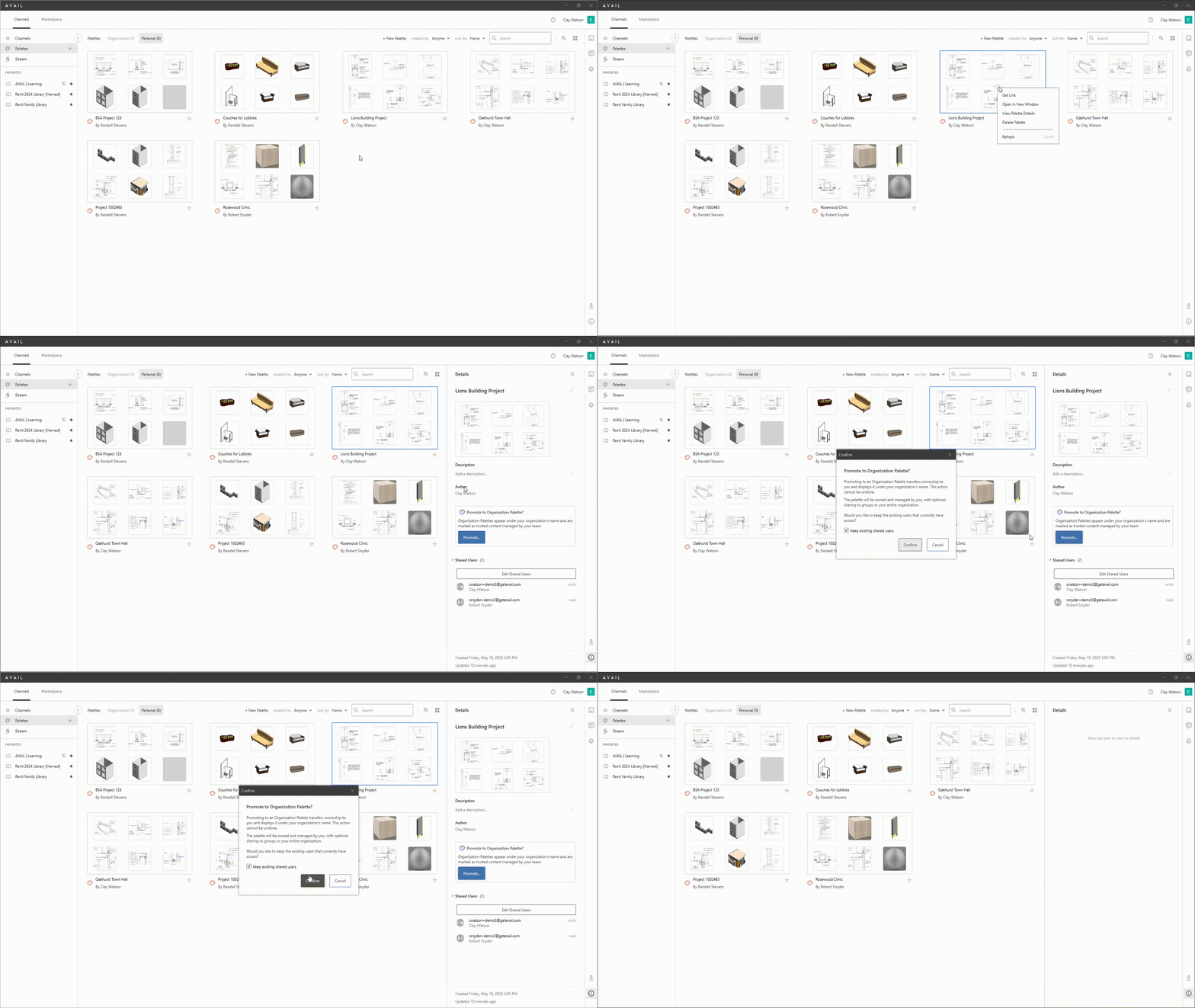
An Organization palette is a shared palette that has been elevated to the organization level by a publisher. Organization palettes are intended for curated, standardized content sets (for example: discipline starter packs, client packages, office standards).
-
Personal palettes are meant to be flexible and temporal (build → use → discard).
-
Organization palettes add governance and control (publisher ownership + permissions + broad sharing).
Where Organization Palettes Appear in AVAIL Desktop
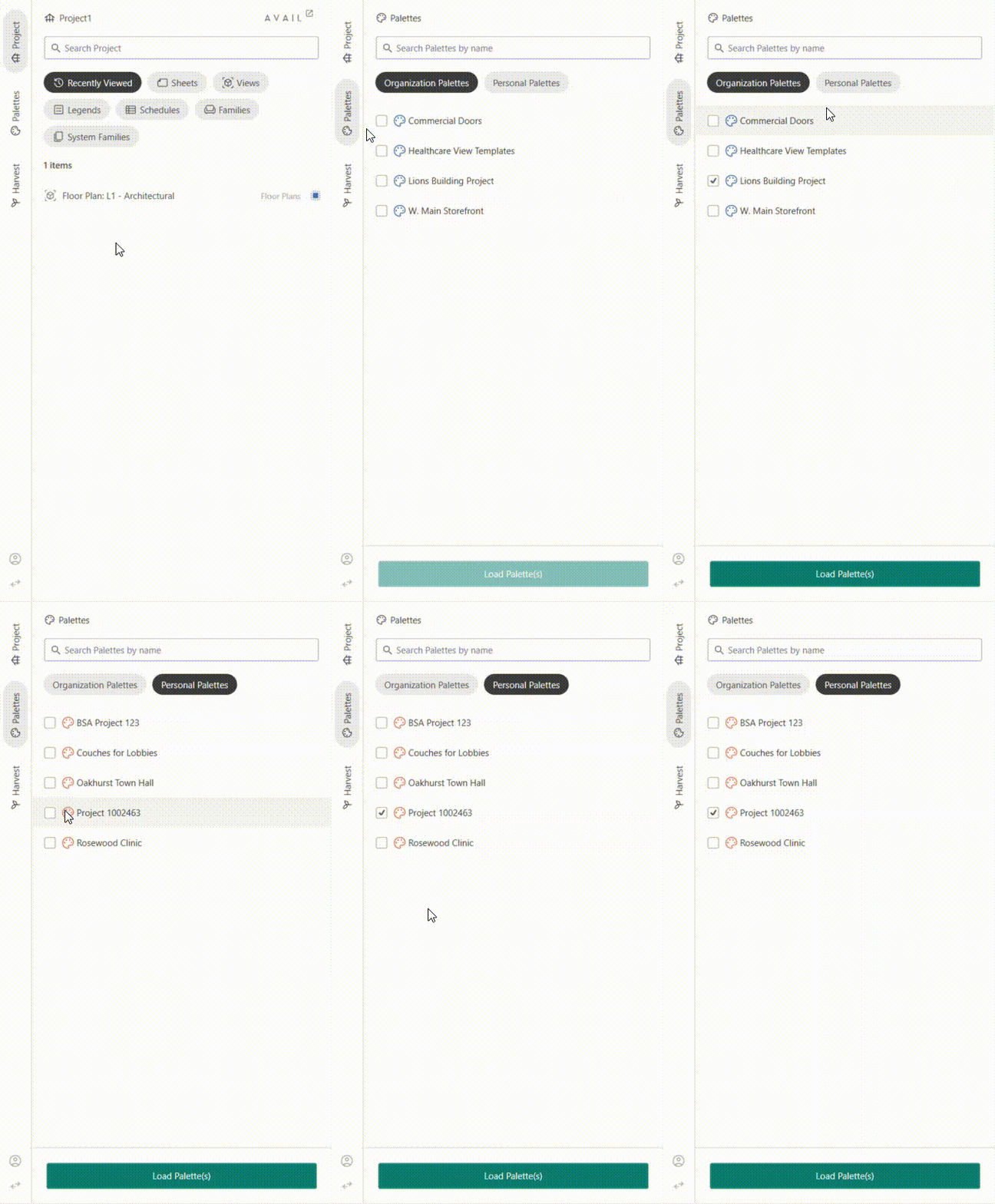
Palettes live under Channels in AVAIL Desktop. In that area, palettes are separated into:
-
Personal
-
Organization
Visual indicator
-
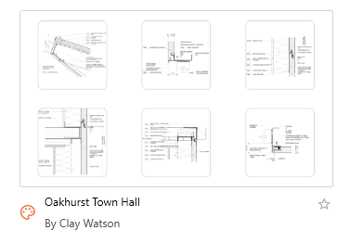
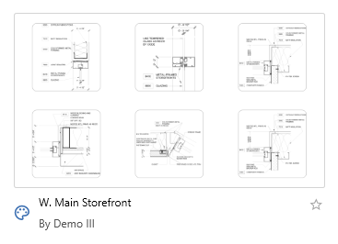
Organization palettes display a blue palette icon
-
Personal palettes display an orange palette icon
Core Features of Organization Palettes
Publisher ownership and curation
-
Organization palettes are owned by the publisher who promoted them.
-
They can be curated/QAQC’d before broad rollout.
Share with User Groups or Everyone in Your Plan
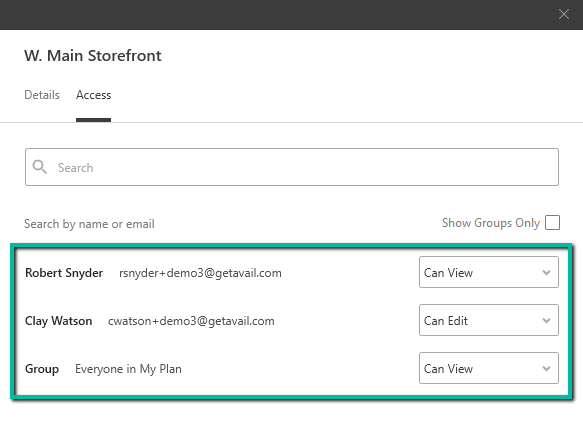
Organization palettes can be shared with:
-
Individual Users
-
User Groups
-
Everyone in My Plan (User Group sharing, including Everyone in My Plan, is not available when sharing a Personal Palette).
Granular Permissions
You can set:
-
View access
-
Edit access
Favorites Palettes
Users can favorite Personal and Organization Palettes for quick access alongside favorited Channels.
Search within Palettes
The updated palette experience adds search inside Palettes:
-
Searches by content name only.
-
Does not search tags/metadata like Channels.
-
Palettes are limited to 200 items.
Updated Palette Cards (Thumbnail Grid)
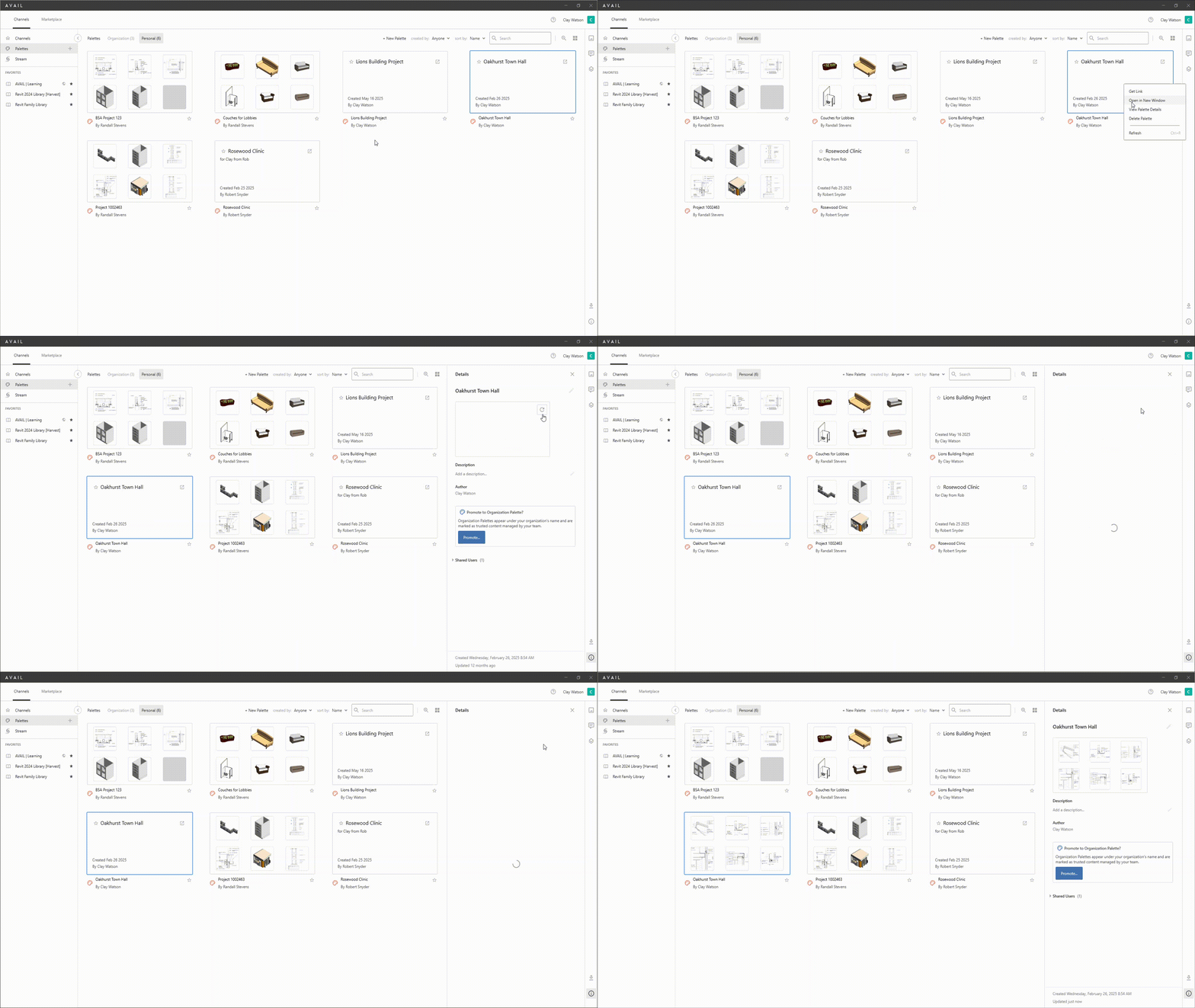
Palettes can display a grid-style preview card:
-
Use Generate Card from Selection to choose which items appear.
-
You cannot upload a custom image like you can for channel cards.
-
Selecting fewer items may show gray placeholders in unused slots.
Add-in Support + Bulk Loading
Organization Palettes are designed to be used directly in supported add-ins:
-
Revit add-in: Palettes tab (Personal + Organization) + optional bulk load
-
AutoCAD/Civil 3D add-in: Palettes tab + bulk load (intended parity with Revit)
Important note: If a palette contains mixed file types, bulk loading will skip content based on the following behavior application:
AVAIL for Revit: Only .rfa and .rvt files will be loaded. Any other file type within the palette be skipped and not loaded.
AVAIL for AutoCAD & Civil 3D: Only .dwg files will be loaded. Any other file type within the palette be skipped and not loaded.