
Please advise: AVAIL's Revit Application Versioning feature is reserved for Enterprise-level subscriptions. Please contact support@getavail.com to activate this feature.
*Additional costs may apply based on the number and size of files being versioned.
What to Expect:
Once the feature is enabled on your account, application versioning is applied to all Revit content in all Host in Cloud (HiC) channels after the content is indexed into a channel. When content is indexed and then published to the AVAIL cloud, it is automatically upgraded to all newer versions of Revit.
(for content that is already hosted in cloud, before versioning is enabled, please do the procedure described below in, How to Trigger Revit Application Versioning)
For example:
- If Chair1.rfa is version 2018 and indexed into AVAIL, AVAIL upgrades Chair1 to versions '22, '23, '24, '25, '26 and '27. AVAIL versions the content quietly, in the background. Multiple versions of the file are not presented to the user.
- When users drag and drop Chair1.rfa into Revit from AVAIL desktop, AVAIL will automatically serve the correct version of Chair1, matching the active session of Revit.
Revit element file versions are stored in the Cloud and downloaded on demand to a hidden local cache, which AVAIL refreshes when content is updated. If you right-click on content in AVAIL Host in Cloud channels and choose "Open Location," you can see the cache with the versioned files stored in the folder "Files"
Important Note: Autodesk versioning may take an undetermined amount of time. AVAIL batch processes 100 files in 5-minute increments to expedite the processing; however, it may take much longer for the versioning to be completed.
Please allow a minimum of 30 minutes (from the time the content is published to the cloud) for versioning to take effect.
How to Trigger Revit Application Versioning
The feature is not automatically enabled for Enterprise accounts, even if they have Host in Cloud channels in AVAIL. The feature must be enabled by AVAIL support.
Once the service has been enabled by support, follow this recommended workflow to ensure all Host in Cloud content is versioned as expected:
- Open a Host in Cloud Channel.
- Select All (Ctrl + A) content in the channel.
- Right-click and choose: Publishing> Upload Content to Cloud.
Keep in mind, the versioning process is dependent on the quantity and file size of content that is being versioned. AVAIL also relies on the Autodesk Versioning service, which can take an undetermined amount of time.
Please allow a minimum of 30 minutes (from the time the content is published to the cloud) for versioning to take effect.
What Happens Next?
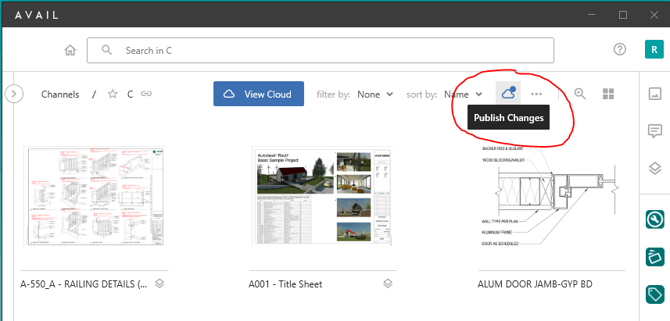
After the initial steps to trigger versioning on content, the process becomes automatic. Versioning will now automatically take place whenever content is indexed to a channel, then published to the cloud using the Publish Changes button (see picture below) .
- This includes manually indexed, harvested, or streamed content.
- It includes new content brought into a channel, and when updated content is re-indexed into a Channel.
Want to know more about the AVAIL Host in Cloud service? Read this article for more information about how cloud content is refreshed in AVAIL Host in Cloud when updated at the source: How does Host in Cloud content get updated?