
Estimated read time: 4 minutes
Overview
AVAIL can be used to manage and distribute Revit materials while allowing Revit to access the texture images associated with those materials. However, it is important to understand how Revit resolves texture files and how this differs from accessing the Revit material itself through AVAIL.
How Revit Materials Reference Texture Images
A Revit material can reference external image files, or texture maps, used to define its render appearance. These may include images used for color, bump, cutout, or other appearance properties.
When a material references a texture image, Revit needs to be able to locate that image. Revit will look for the texture in:
- The original file location stored in the material's definition.
- A folder included under Additional Render Appearance Paths in Revit (pictured below).
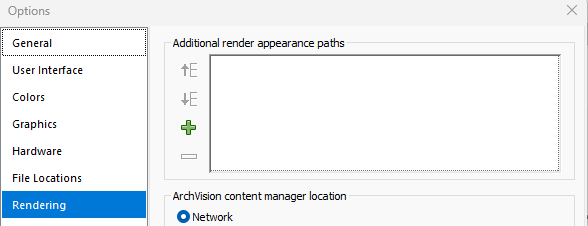
The texture maps need to be either in the original location when the texture was added to the material (Revit stores the explicit file path to the texture in its definition), or the texture map needs to be located in one of the paths being monitored by Revit as part of it's render appearance paths settings.
Once the Revit material has been loaded into a project, it does not matter where the material itself was loaded from. The important consideration is whether Revit can continue to locate the external texture files referenced by that material.
Using a Shared Network or Cloud-Synced Location
For teams that maintain texture images in a centrally accessible location, such as a network drive or a locally synchronized Egnyte folder, that location can continue to serve as the source for the texture files.
The shared texture folder should be added to Revit under:
File > Options > Rendering > Additional Render Appearance Paths
AVAIL can Harvest Revit Materials from RVT container files and publish the Materials to an AVAIL Channel without requiring the texture images to be moved into AVAIL.
This approach allows AVAIL to provide centralized access to the Revit content (Materials) while Revit continues to resolve the associated texture images from the shared location.
Example
A firm might maintain its texture library at:
X:\Firm Resources\Materials\Textures
The Revit materials can be indexed and accessed through AVAIL, while the shared texture location is added to each user's Additional Render Appearance Paths.
When a user loads a material from AVAIL, Revit can then locate the material's texture maps from the shared folder.
Important note: Revit Render Appearance Paths Are Not Recursive. Revit does not recursively search folders listed under Additional Render Appearance Paths.
For example, if you add:
X:\Firm Resources\Materials\Textures
Revit will look for texture files directly within that folder, but it will not automatically search subfolders such as:
X:\Firm Resources\Materials\Textures\Wood
X:\Firm Resources\Materials\Textures\Stone
X:\Firm Resources\Materials\Textures\Metal
If texture images are organized into subfolders, each required folder may need to be included as an Additional Render Appearance Path in Revit.
This limitation should be considered when designing a shared texture-library folder structure.
Do Texture Images Need to Be Indexed in AVAIL?
Not necessarily.
The texture images need to be accessible to Revit, but they do not need to be indexed in AVAIL simply for Revit to resolve them.
For example, a firm can:
- Maintain texture images in a shared network or synchronized cloud-storage location.
- Configure that location as an Additional Render Appearance Path in Revit.
- Index and manage the associated Revit content through AVAIL.
- Load the Revit material from AVAIL into a project.
As long as Revit can resolve the external texture files, the material's render appearance should remain available.
Texture images may still be indexed in AVAIL if there is a separate benefit to making those files searchable or accessible to users.
What About AVAIL Host-in-Cloud?
AVAIL Host-in-Cloud works differently from a shared network location.
Content distributed through Host-in-Cloud is downloaded to a user's local cache rather than maintained at a single shared file-system location that all users reference.
Because Revit's Additional Render Appearance Paths expect an accessible file-system path for texture maps, a centralized network or synchronized storage location is generally better suited for maintaining a shared texture library that Revit must resolve consistently.
If your organization already maintains its texture images in a shared location such as Egnyte, you can typically leave those files in place and use that shared location for Revit's render appearance paths while using AVAIL to index and distribute the associated Revit content.
Recommended Workflow
For organizations managing a shared Revit material and texture library, we recommend:
- Maintain texture maps in a consistent shared location. Keep the external image files accessible to everyone who needs to use the materials.
- Configure Revit's Additional Render Appearance Paths. Add the appropriate shared texture folders to Revit for each user or workstation.
- Account for Revit's non-recursive folder behavior. If textures are stored in multiple subfolders, make sure each required location is available to Revit.
- Use AVAIL to index and distribute the Revit content. The Revit materials can be discovered and loaded through AVAIL without requiring AVAIL to replace the shared storage location used by Revit for texture resolution.
- Index texture images in AVAIL only when useful. Texture files do not need to be indexed in AVAIL solely for Revit to resolve them.
Key Takeaway
AVAIL can provide access to and management of your Revit materials, while your existing shared storage location continues to provide the texture images those materials reference.
Think of these as two complementary responsibilities:
-
AVAIL helps users find and load the Revit content.
-
Revit's Render Appearance Paths help Revit find the external texture files required to render that content correctly.
Still have questions? Contact our Customer Success team by emailing support@getavail.com.