
AVAIL can read the View Scale parameter of drafting views set in Revit, and use the parameter as an AVAIL key, to tag views with their scale value.
Initial setup after which the process is automated:
- On the machine(s) from which you run Harvest, go here: %Programdata%\Avail\addins\RevitTagGenerator
- Open the file RevitTagGenerator.xml in Notepad.
- Add this line to the file, at the top of the file: <key>View Scale</key>
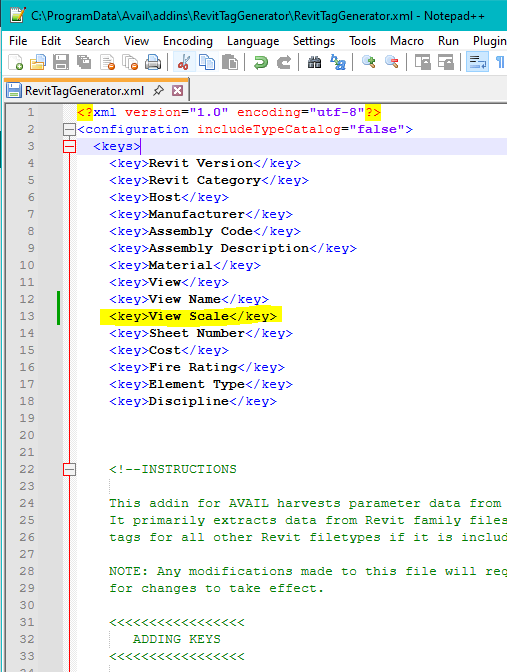
- Save and close the file RevitTagGenerator.xml.
- Harvest drafting views, or re-Harvest them if already harvested.
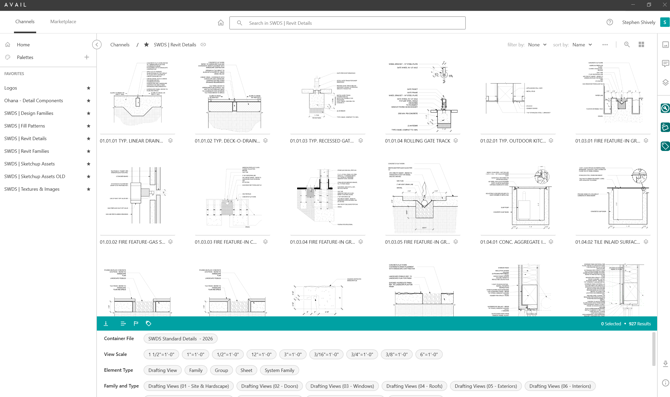
The result will be a Key in your channel(s) called View Scale.
The scale of each drafting view will be a scale tag, under the green line in each channel:
These steps may be required, if not already done:
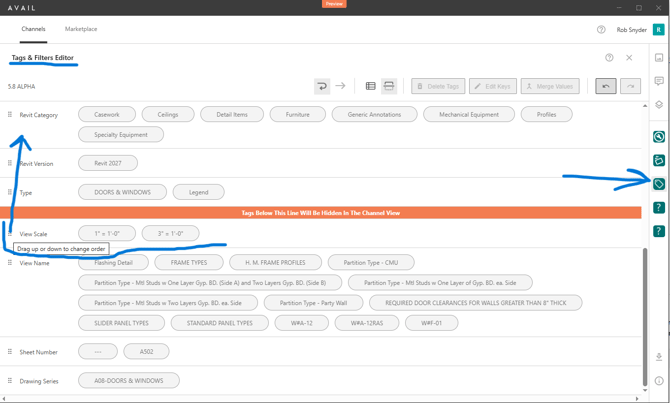
After adding <key>View Scale</key> to the Revit Tag Generator and re-Harvesting, the View Scale key, and its tags, may not yet be visible under the green line in the affected channels.
To make the View Scale key, and its tags, visible under the green line in the Channel:- drag the View Scale key above the orange line in the Tags and Filters Editor (see image below).
- Exit the Tags and Filters Editor.
- Refresh the Channel.
What if your View Scale parameter values are integers, not imperial notation?:
Edit them!
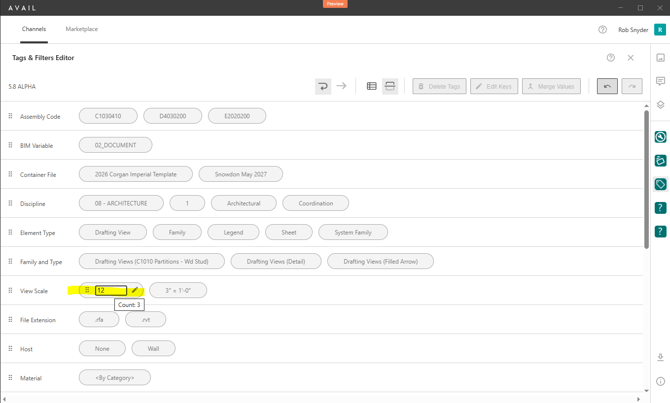
In the tags and filters editor, hover over a View Scale tag and click on the pencil to edit.
For example:
-
Change scale value "12" to 1" = 1'-0"
-
Change scale value "96" to 1/8" = 1'-0"
- Change scale value "100" to 1:100
Then exit the tags and filters editor, and refresh the channel.
Ever wonder how to create NEW keys?
It's not obvious in the AVAIL UI.
This article shows you how:
Best Practice: Organizing Keys and Tags with Minimal Maintenance