
Overview
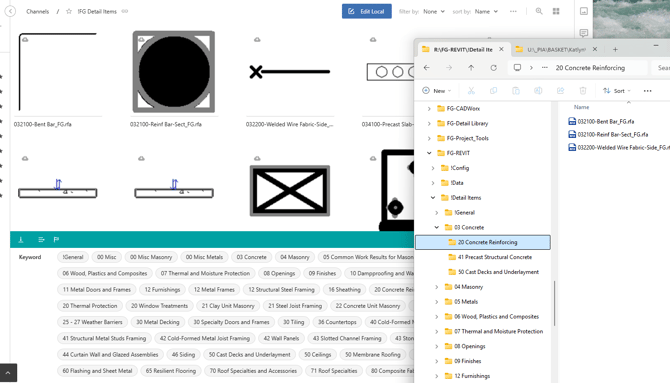
An AVAIL user wrote a support ticket with the screenshot below (and permission to publish it in this article) and asked:
Question & Use Case:
I have a question on best workflow for some changes to "Keyword" tags, and creating new keys for our detail items. Our Detail Items were indexed using folder names as tags. I want to separate the initial main folder from the subfolders. Would this require using TagIO to create Division and SubDivision "keys"?
I would prefer the easiest path that would be the least work whenever new content is added (we are working on our details so we will have more detail items coming soon.)
Answer from AVAIL:
Try these steps for getting this organized as you want now, in a way that remains automated as new content is indexed later:
- In the Channel, open the Tags and Filters Editor, the interface with the orange horizontal line, accessible by AVAIL Publishers. It's one of the of the green buttons on the right side of the AVAIL interface.
- Keys below the orange line, in the editor, are hidden to AVAIL Consumers (not visible under the green line in the channel)
- Everything in the Tags and Filters Editor interface is draggable (drag and drop)
- Select (single click) one tag bubble: [20 Concrete Reinforcing] (in the key "Keyword")
- At the top of the UI click "Edit Keys"
- A dialog box opens.
- Either choose an existing key (keys are stored at the AVAIL account level) or click "Create New Key"
- Create a new Key called "Subdivision"
- Notice that a key called Subdivision appears below the orange line.
- The Tag [20 Concrete Reinforcing] is paired with that key,
- Drag the Key Subdivision above the orange line (to make it visible under the green line in the channel.
- drag it to the position (order) you want it to appear under the green line in the channel
- Find single click (ctrl-click to multi-select) the tags in the key "Keyword" [41 Precast..] and [50 Cast Decks...] and DRAG those tag bubbles to key row "Subdivision"
- Notice that a key called Subdivision appears below the orange line.
- Select (single click) one tag bubble: [03 Concrete] (in the key "Keyword")
- At the top of the UI click "Edit Keys"
- A dialog box opens.
- Either choose an existing key (keys are stored at the AVAIL account level) or click "Create New Key"
- Create a new Key called "Division"
- Notice that a key called Division appears below the orange line.
- The Tag [03 Concrete Reinforcing] is paired with that key,
- Drag the Key Division above the orange line (to make it visible under the green line in the channel.
- drag it to the position (order) you want it to appear under the green line in the channel.
- You probably want to drag the key Divisionabove the key Subdivision
- Notice that a key called Division appears below the orange line.
- Exit the Tags and Filters Editor by clicking the X at the top right of the editor panel.
- The channel updates.
- The tags and filters editor edits data at both the account level and the channel level, in one interface:
- The key/value pairings you made are applied account-wide to all content (tags are associated with content, not channels, and all tags are paired with one key)
- The appearance of keys above the orange line (below the green line) and their order, are channel-specific.
The Result:
